Word Office: Docs Reader
Galaxy studio appsProductivity
4.888.00 Reviews
- Version
- 2.1.0
- Installs
- 5.00M
- Age Rating
- Everyone
Screenshots
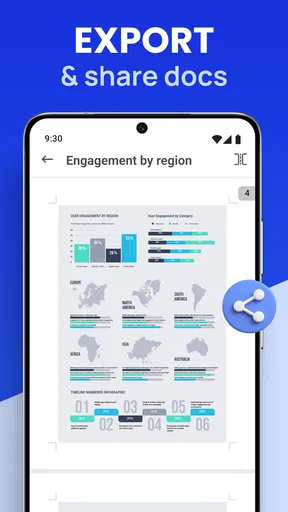
Our Review of Word Office: Docs Reader
 Analysis by Appyee
When I need to check a document away from my desk, I want to get to the relevant page quickly and know whether I can make a useful change without switching tools. Word Office: Docs Reader is a free productivity app from Galaxy studio apps, and its focus is handling office documents on a phone. My overall impression is that it is most appealing as a convenient reader and occasional editing companion, rather than as a full replacement for a desktop office suite.
What the free option means
The app is free to download, which makes it easy to try for simple tasks such as opening a file before a meeting or reviewing notes while travelling. It also offers in-app purchases, with listed items ranging from $0.99 to $99.99. That range is worth keeping in mind, but it does not tell me which features require payment or what each purchase unlocks. I would treat the free access as a way to assess the everyday workflow, then check the purchase details in the app before paying for anything.
That distinction matters if you only need to read an occasional document. Free access may be enough for that kind of use, while frequent editing or other needs may lead you to consider a purchase. I would not assume a particular paid capability from the price range alone; the sensible step is to confirm that the specific tool you need is included before spending money.
First Impressions and Setup
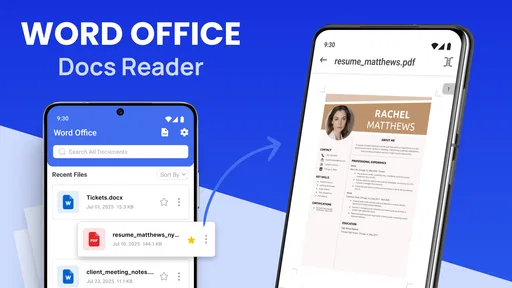
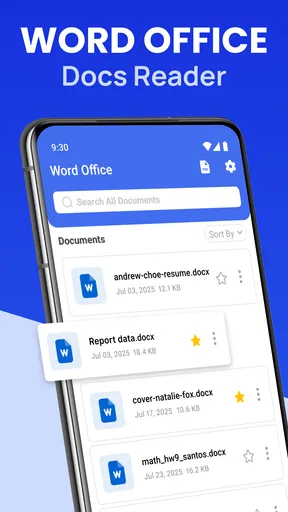
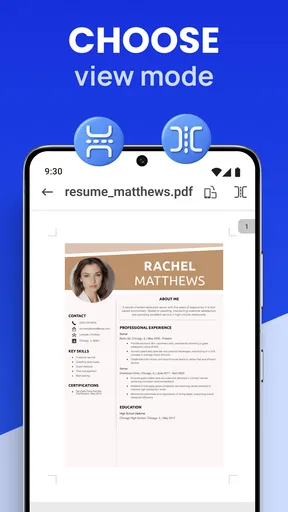
So, I downloaded Word Office: Docs Reader from the app store, and the installation process was a breeze. The app launched quickly, and I was immediately greeted with a clean and intuitive interface. No clutter, no unnecessary bells and whistles—just straightforward functionality. The app supports a plethora of formats including DOC, PDF, XLS, PPT, and more, which is perfect if you're dealing with multiple types of files on a daily basis.
Interface and Usability
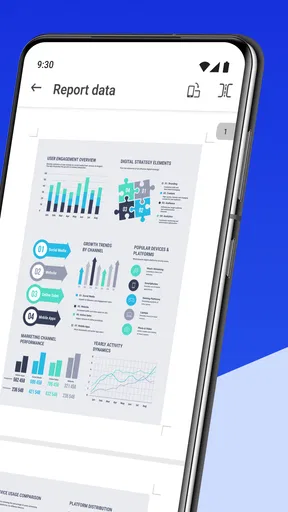
The first thing that struck me was how user-friendly the app is. Upon opening a document, the text is crisp and easy to read. There’s a handy toolbar at the bottom that lets you navigate through the document, zoom in and out, and even search for specific text. It’s designed in such a way that even someone who’s not tech-savvy can find their way around without a hitch.
One of my favorite features is the night mode, which is a godsend for late-night document reading. It’s easy on the eyes and makes reading in low light much more comfortable.
Performance and Features
Word Office: Docs Reader is snappy. Whether I was opening a PDF or a hefty Excel file, the loading times were impressive. The app didn’t lag, even when I was flipping through pages of a dense document. I also loved the annotation tool—perfect for jotting down notes or highlighting important sections in a document. It’s like having a digital highlighter!
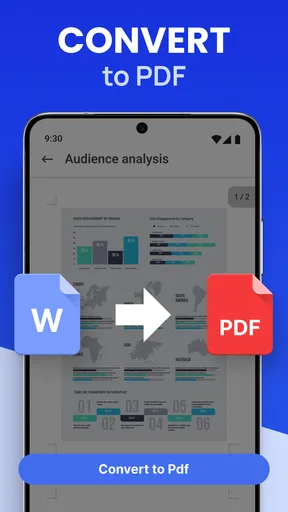
Another neat feature is the ability to convert files. It’s incredibly handy when you need to turn a DOC into a PDF on the fly. Plus, the app supports cloud services, so you can easily pull documents from Google Drive, Dropbox, or OneDrive without any hassle.
Practical ways to use it
The strongest reason to keep a document app on a phone is not to recreate a full office setup; it is to avoid being stuck when a file arrives at the wrong time. Imagine receiving a Word document on the way to class. I would open it, search for the section the sender mentioned, and use the annotation tools to mark a question for later. That gives me a useful review copy without pretending a small screen is the ideal place to rewrite a long assignment.
For a workday, I can see the app being useful for checking a presentation or spreadsheet before a discussion. Opening several kinds of office files in one place can save the minor hassle of deciding which reader to use. Still, I would treat a phone edit as a quick correction, not the final pass on a document where layout, tables, or precise formatting matter. A larger screen makes those details easier to inspect.
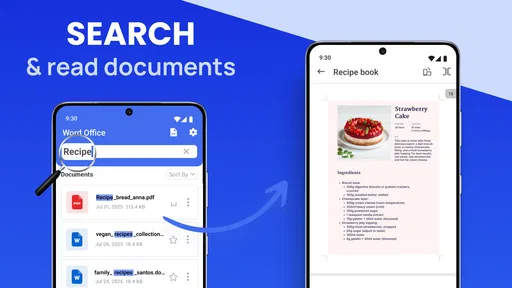
A small workflow tip is to search before scrolling. In a lengthy file, a distinctive name or phrase can take you to the relevant passage faster than paging through each screen. For review, annotations can act as reminders of what to ask or revise later. I would keep those notes purposeful: mark the issue and handle substantial rewriting when I have a keyboard and enough room to compare the surrounding text.
Where it fits among document apps
Compared with using separate apps for word-processing files, PDFs, spreadsheets, and slides, an all-in-one reader can reduce app switching when the immediate task is simply to inspect a file. That convenience is the main value I see here. It is less compelling if your work depends on advanced formatting, extensive collaboration, or a familiar desktop editing workflow. In those cases, the office suite you already use may be the better place to make and verify important changes.
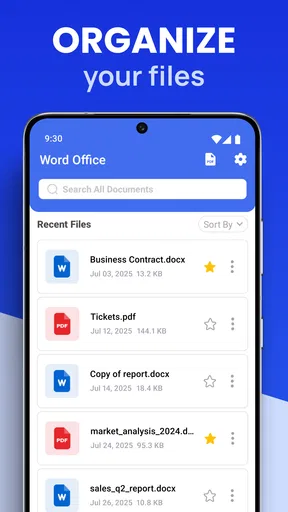
Cloud access is useful when a document is already stored in a supported service, because it can spare you from hunting through local folders or sending yourself another copy. Even so, I would check that I have opened the intended version before annotating or editing. A practical habit is to confirm the file name and location first, especially when a shared folder contains similarly named drafts. Convenience does not remove the need to keep track of which copy is current.
Limits worth considering
A phone is naturally a constrained place to work with documents. Long edits can become tiring, and checking whether a page still looks right is harder on a compact display. The app’s broad document handling may help with quick access, but it does not mean every file will be as comfortable to edit as it is to read. I would use it to review, search, annotate, or make a small change, then return to a larger device for careful finishing.
There is also a cost decision beyond the initial download. Since in-app purchases span a wide range and the listed prices alone do not explain what each item offers, I would avoid buying on the assumption that a feature is included. First identify the task you need to solve, then check the purchase screen for that exact capability. If your needs are occasional reading and basic document handling, paying may not add enough value for you.
Who is likely to get value
I would recommend trying it if you often receive office files while away from your computer, want a single place to open different document types, or need to mark passages for later attention. Students can use that kind of workflow to review handouts between classes; people who travel for work may appreciate being able to inspect a file before a meeting. The app’s Everyone content rating makes it broadly suitable from an age-rating perspective, though that alone does not determine whether its tools suit a particular user.
I would skip it as my primary work environment if I regularly produce polished documents, rely on detailed spreadsheet operations, or need a dependable collaborative editing process. In those situations, a full office suite on a computer—or the specific mobile suite already connected to your team’s workflow—is a more sensible choice. I would also look elsewhere if you only need one narrow function and already have a trusted app that handles it well.
What to check before relying on it
If you are wondering whether it can replace a desktop word processor, my answer is no: I see it as a handy mobile companion for access and quick tasks, not a guarantee of desktop-level control. If you are asking whether it can help with files stored in cloud services, the app supports Google Drive, Dropbox, and OneDrive; I would still verify the correct file and version after opening it. And if you are unsure whether a specific edit or conversion costs extra, check the in-app purchase details rather than inferring from the fact that the app itself is free.
The app has a 4.6 average from around 18,000 ratings and has been installed over a million times. Those figures suggest that many people have tried it, but I would still judge it by whether it handles your own file types and workflow comfortably. It is rated for Everyone, and the current version is 2.1.0, with Android 5.0 as the minimum operating-system requirement.
Security and Privacy
In today’s digital age, security is a big concern. Thankfully, Word Office: Docs Reader takes privacy seriously. The app doesn’t require unnecessary permissions, and there’s no pesky sign-up process that demands your personal information. It’s nice to know that your documents are safe and secure.
Final Thoughts
All in all, Word Office: Docs Reader is a solid choice for anyone looking to manage their documents on the go. It’s reliable, fast, and packed with useful features that make managing documents a breeze. Whether you’re a student, professional, or just someone who deals with documents regularly, this app has got you covered.
If you’re tired of juggling multiple apps to handle different file types, give Word Office: Docs Reader a try. It might just become your new favorite app for all things document-related!
Verdict
Strengths of Word Office: Docs Reader
- Intuitive interface makes navigation easy.
- Supports a variety of document formats.
- Offline access to saved documents.
- Real-time collaboration features.
- Regular updates enhance functionality.
Limitations of Word Office: Docs Reader
- Ads can be intrusive while editing.
- Limited cloud storage in free version.
- Some features require a subscription.
- Occasional syncing issues with cloud.
- No dark mode for night-time use.
Other Releases by Galaxy studio apps
View All
GPS Photo: With Location & Map
Travel & Local4.2

ArtFonts: Stylish Text
Personalization4.6

Credit Card : Wallet & NFC
Finance4.6

Wedding Invitation Card Maker
Events4.4
Similar Picks in This Category
View All
Google Calendar
Google LLC4.6

Google Drive
Google LLC4.3

Google Assistant
Google LLC3.9

Microsoft OneDrive
Microsoft Corporation4.6

Samsung Calendar
Samsung Electronics Co., Ltd.4.1

Microsoft OneNote: Save Notes
Microsoft Corporation4.6
Frequently Asked Questions
What features does Word Office: Docs Reader offer?
Word Office: Docs Reader provides a comprehensive suite of features, including the ability to view, edit, and share documents in various formats like DOC, DOCX, and PDF. It also offers cloud storage integration, enabling users to access files from Google Drive and Dropbox. Additionally, the app supports real-time collaboration, making it ideal for team projects.
Is Word Office: Docs Reader compatible with all devices?
Yes, Word Office: Docs Reader is designed to be compatible with both Android and iOS devices. It ensures seamless functionality across smartphones and tablets, providing a consistent user experience. The app is optimized for different screen sizes and resolutions, ensuring that users can comfortably view and edit documents on any device.
Does Word Office: Docs Reader require an internet connection?
While an internet connection is required for certain features like cloud storage access and online collaboration, Word Office: Docs Reader allows users to view and edit documents offline. This makes it convenient for users who need to work on documents without reliable internet access, ensuring productivity anytime, anywhere.
Are there any in-app purchases or subscriptions?
Word Office: Docs Reader offers a free version with basic features. However, for advanced functionalities such as enhanced editing tools and additional cloud storage, users may opt for in-app purchases or subscribe to a premium plan. The app provides transparent information about the costs and benefits of upgrading to premium.
How user-friendly is Word Office: Docs Reader?
The app is designed with a user-friendly interface, making it accessible for users of all skill levels. It features intuitive navigation, clear icons, and helpful tutorials to guide new users. Whether you're a student, professional, or casual user, Word Office: Docs Reader ensures an easy and efficient document management experience.
